
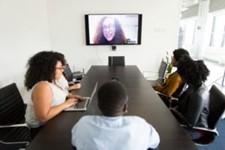
 When conducting or participating in a web conference, it's best to keep a few things in mind to help ensure its success.
For current web-conferencing and course-communication options, see the Canvas resources or contact the CTL for help choosing the right tool.
Find a clear, clean, and bright space
A web camera can pick up a lot more than anticipated. Ensure the space you're working from is clear of clutter and any unnecessary items that will be picked up by the camera. It's often also best to ensure that the space has an appearance of cleanliness by removing any items that can potentially obstruct the conference itself.
Check if the space has enough light, or even too much, for the camera to properly pick up your video image. Lighting is very helpful in projecting an accurate image, but a lack of lighting will send a dim image and result in participants having a hard time viewing the video feed. On the other side, too much light will wash out the image with a brightness effect, causing the same problem as though it were too dark.
Pick a quiet location
Background noise can have a heavy effect on presenter audio, and make the web conference generally unpleasant for the participants. Hallways, areas with loud talking or music, and other background noise are typically not good places for a web conference. Pick a location free of any conflicting noise. If it's difficult to find a quiet location, consider using a headset with a microphone to help centralize your voice and filter out the background.
Have a reliable connection
A reliable connection helps ensure that a conference can occur without disruption. A connection on a crowded WiFi access point, or one with a low signal, can have difficulty transmitting a web conference and can also drop the connection at random points. Ensure the connection is strong when using WiFi, or use a wired connection with descent speed. You may also want to run a speed test using a tool like SpeedOfMe.
Practice the technology before the session
As with any technology, it's best to practice with a web conferencing tool before using it for a live session. Practicing the tool will help you anticipate and correct any difficulties, and will give the opportunity to try all of the features of the tool.
As an example, consider the whiteboard feature within a web conferencing tool. Many web conferencing tool provide a whiteboard feature, but have different implementations of it. Practicing with the tool ahead of time will allow you to determine its usefulness, and how to use it with minimal difficulty when conducting a session.
Arrive early to check technology
Much like testing a tool before using it, it's best to "arrive" early to a web conference, especially when hosting it. This will allow any potential difficulties to be noticed before the session is intended to start.
Maintain privacy and remove materials
When conducing a web conference it's sometimes necessary to share a computer screen. It's important to maintain privacy and remove materials that are not for an audience's eyes. A few tips:
When conducting or participating in a web conference, it's best to keep a few things in mind to help ensure its success.
For current web-conferencing and course-communication options, see the Canvas resources or contact the CTL for help choosing the right tool.
Find a clear, clean, and bright space
A web camera can pick up a lot more than anticipated. Ensure the space you're working from is clear of clutter and any unnecessary items that will be picked up by the camera. It's often also best to ensure that the space has an appearance of cleanliness by removing any items that can potentially obstruct the conference itself.
Check if the space has enough light, or even too much, for the camera to properly pick up your video image. Lighting is very helpful in projecting an accurate image, but a lack of lighting will send a dim image and result in participants having a hard time viewing the video feed. On the other side, too much light will wash out the image with a brightness effect, causing the same problem as though it were too dark.
Pick a quiet location
Background noise can have a heavy effect on presenter audio, and make the web conference generally unpleasant for the participants. Hallways, areas with loud talking or music, and other background noise are typically not good places for a web conference. Pick a location free of any conflicting noise. If it's difficult to find a quiet location, consider using a headset with a microphone to help centralize your voice and filter out the background.
Have a reliable connection
A reliable connection helps ensure that a conference can occur without disruption. A connection on a crowded WiFi access point, or one with a low signal, can have difficulty transmitting a web conference and can also drop the connection at random points. Ensure the connection is strong when using WiFi, or use a wired connection with descent speed. You may also want to run a speed test using a tool like SpeedOfMe.
Practice the technology before the session
As with any technology, it's best to practice with a web conferencing tool before using it for a live session. Practicing the tool will help you anticipate and correct any difficulties, and will give the opportunity to try all of the features of the tool.
As an example, consider the whiteboard feature within a web conferencing tool. Many web conferencing tool provide a whiteboard feature, but have different implementations of it. Practicing with the tool ahead of time will allow you to determine its usefulness, and how to use it with minimal difficulty when conducting a session.
Arrive early to check technology
Much like testing a tool before using it, it's best to "arrive" early to a web conference, especially when hosting it. This will allow any potential difficulties to be noticed before the session is intended to start.
Maintain privacy and remove materials
When conducing a web conference it's sometimes necessary to share a computer screen. It's important to maintain privacy and remove materials that are not for an audience's eyes. A few tips:
- Close any web browser, email program, or any other application that is not needed. At an absolute minimum be sure to minimize any program that won't be needed right away.
- If a web browser is needed, ensure any open tabs/windows are for an audience's eyes. If not, consider opening an Incognito (Chrome), Private (Firefox & Safari), or InPrivate (Edge) window for the web conference.
- Move files off a Desktop that may be confidential or otherwise private. It can be as simple as creating a new folder on the Desktop and moving all files into it for the time of the web conference.